
If you’re a TracFone customer, you’ve probably experienced an occasional issue, whether it’s login problems, missing balances, voicemail not working, or trouble adding more data.
While these issues can be frustrating, many of them can be solved without replacing your phone or spending hours on support.
This guide covers some of the most common TracFone problems along with practical troubleshooting steps that have helped many users resolve them.
1. Contact Customer Support the Right Way
When self-service options don’t solve the problem, contacting TracFone support is often the fastest solution.
Many experienced users recommend asking for technical assistance immediately when calling customer service. This can help you reach a live representative instead of spending excessive time with the automated system.
Before calling, have the following information ready:
- Your phone number
- Device IMEI or serial number
- SIM card number (if applicable)
- Account email address
Having this information available can significantly speed up the troubleshooting process.
2. Use the TracFone Website Instead of the Mobile App
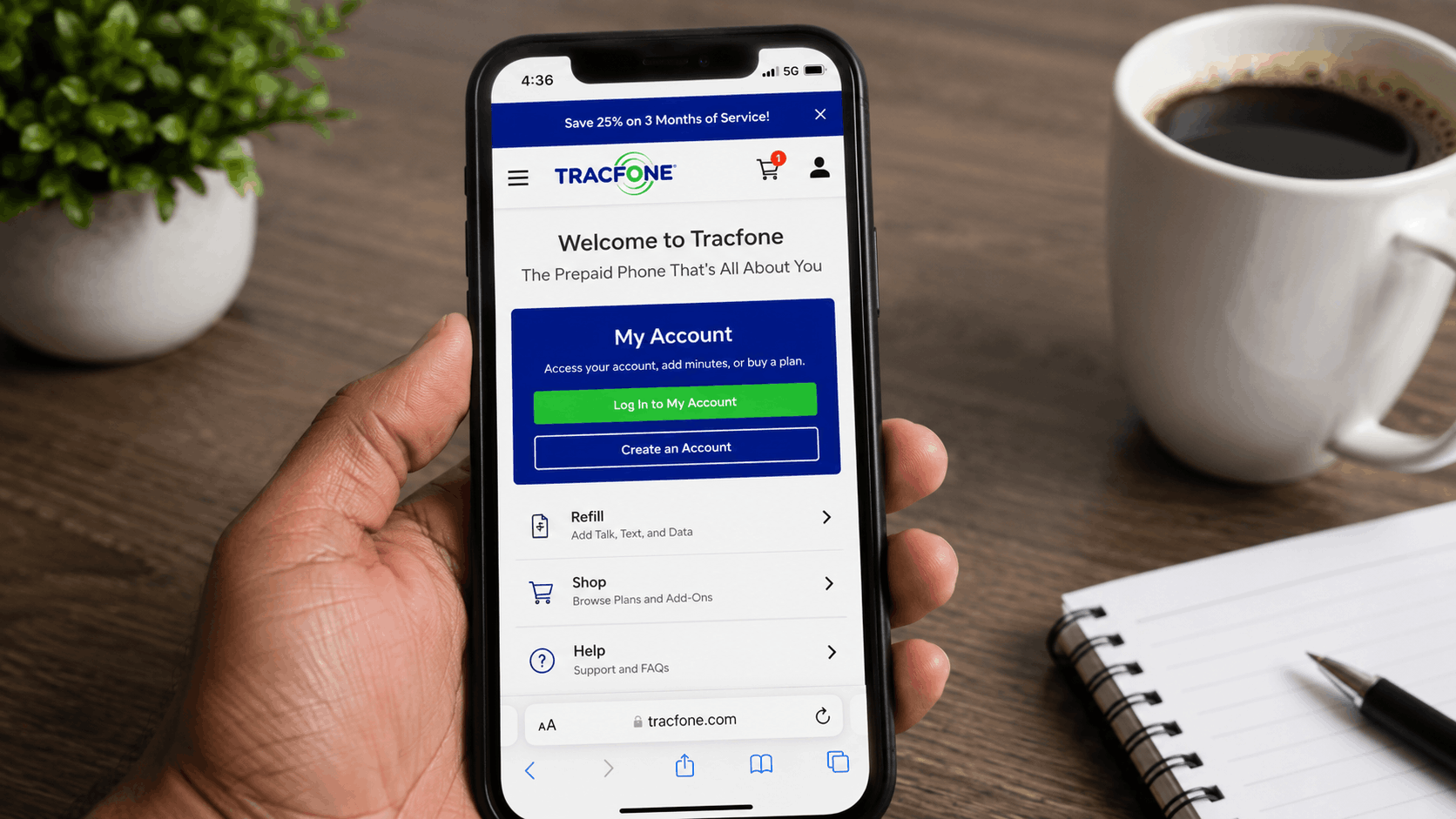
Although the TracFone app works well for some customers, many users report that the website is generally more reliable.
If you’re having trouble with the app, try completing tasks through the official website instead, especially when:
- Checking your balance
- Viewing service end dates
- Purchasing add-ons
- Managing your account
- Updating payment methods
If the app repeatedly crashes or fails to load information, switching to the website may solve the issue immediately.
3. Can’t Log Into Your TracFone Account?
Login problems are among the most common TracFone complaints.
Before assuming your account has a serious problem, try these simple fixes:
- Clear your browser cache and cookies.
- Try another web browser.
- Switch between logging in with your email address and your phone number.
- Restart your browser or device.
- If you’re using the app, try logging in through the website instead.
Many login issues are caused by outdated browser data rather than account problems.
4. Can’t See Your TracFone Balance?
Sometimes your talk, text, or data balance doesn’t appear correctly inside the app or through automated phone services.
If that happens:
- Sign in to your account on the TracFone website.
- Check your account dashboard.
- Compare the displayed balances with your recent purchases.
The website often shows more accurate account information than the mobile app.
5. Trouble Buying TracFone Data or Text Add-Ons
If you need additional data or text messages:
- Log into your TracFone account.
- Open the Shop section.
- Select Plan Add-Ons.
- Choose the add-on you want.
- Complete checkout.
If error messages appear during checkout, don’t immediately assume the purchase failed. Verify whether the order was actually processed before attempting another purchase to avoid duplicate charges.
6. TracFone Voicemail Isn’t Working
Voicemail issues may include:
- New messages not appearing
- Greeting not playing correctly
- Callers unable to leave messages
Try these troubleshooting steps:
- Re-record your voicemail greeting.
- Restart your phone.
- Update the TracFone app if you’re using visual voicemail.
- Confirm your voicemail settings haven’t changed after a recent software update.
If voicemail still doesn’t function properly, customer support may need to reset your voicemail service.
7. TracFone Hotspot Won’t Connect
If your phone supports mobile hotspot but devices cannot connect:
- Restart both your phone and the connected device.
- Turn hotspot off and back on.
- Verify that hotspot is included with your current plan.
- On some Android devices, manually selecting the mobile network instead of automatic network selection has resolved hotspot issues.
Network-related settings can sometimes prevent hotspot features from working correctly.
8. TracFone Auto-Refill Problems
Some customers report that Auto-Refill occasionally fails to renew service.
If this happens:
- Verify that your payment method is still valid.
- Confirm your card hasn’t expired.
- Cancel Auto-Refill.
- Enroll again with the same payment method.
Recreating the Auto-Refill enrollment often resolves account synchronization problems.
9. Does TracFone Carry Over Unused Data?
Many TracFone plans allow unused data to roll over as long as your service remains active and you continue renewing eligible plans.
If you’re told otherwise by customer support, it’s worth reviewing your specific plan details or asking another representative to verify your account.
Keep in mind that rollover rules can vary depending on your service plan.
10. Check Your Balance Using 611611
You don’t always need to log into your account.
TracFone’s 611611 text service lets you quickly check account information by sending simple text commands.
For example, sending BALANCE (or BAL, depending on your account) to 611611 can provide your current balance information within seconds.
This is often the fastest way to verify your remaining service.
11. When Nothing Else Works
If you’ve tried every troubleshooting step and your issue remains unresolved:
- Contact TracFone customer support again.
- Keep records of chat transcripts and case numbers.
- Document any billing or service issues.
- If the problem cannot be resolved through normal support channels, you may consider filing a complaint with the appropriate consumer protection agency, such as the FCC, when applicable.
Fortunately, most TracFone problems are resolved long before reaching this stage.
