
Poor signal is one of the most frustrating problems TracFone users can experience. Weak reception can lead to dropped calls, slow mobile data, delayed text messages, and an unreliable connection when you need it most.
Fortunately, many signal issues can be solved without buying a new phone or switching carriers.
Whether your TracFone uses Verizon, AT&T, or T-Mobile towers, the following troubleshooting steps can often restore a stronger, more reliable connection.
1. Restart Your Phone
A simple restart is often overlooked, but it can refresh your phone’s connection to the cellular network.
Restarting your device forces it to reconnect to nearby cell towers and clears temporary software glitches that may interfere with signal reception.
If you’ve recently traveled or noticed the problem suddenly appear, rebooting should be your first troubleshooting step.
2. Verify Your Network Settings
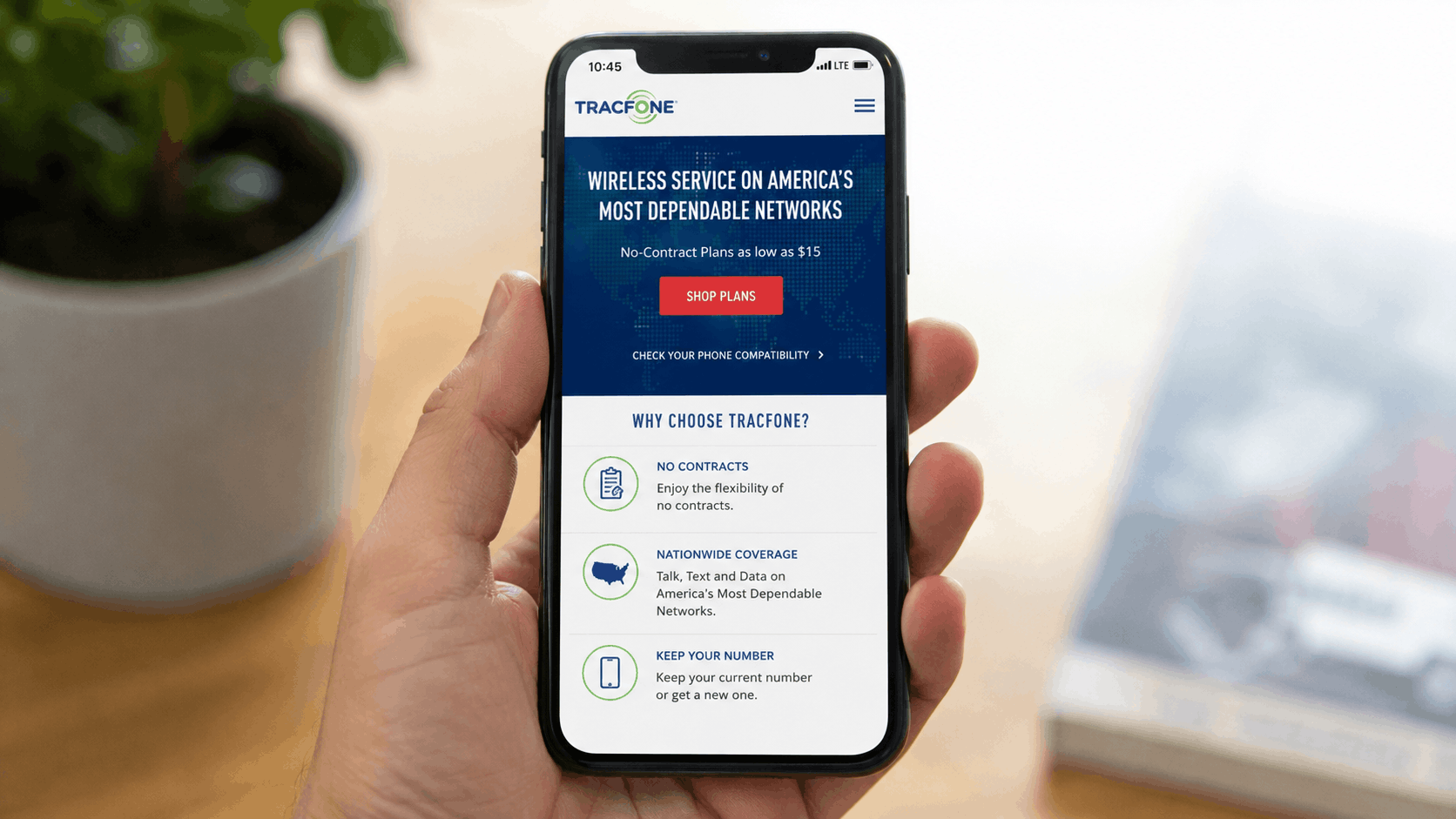
Incorrect network settings can prevent your phone from connecting properly.
Check that:
- Airplane Mode is turned off.
- Mobile Data is enabled.
- Cellular Network settings haven’t been accidentally changed.
- Wi-Fi Calling hasn’t been disabled if you normally rely on it.
Many users have discovered that a single setting change was responsible for their inability to make or receive calls.
3. Remove and Reinsert the SIM Card
A loose or improperly seated SIM card can cause intermittent service problems.
Turn off your phone before removing the SIM card. After a few seconds, carefully reinsert it and power the phone back on.
This simple step helps the device establish a fresh connection with the carrier’s network.
4. Enable Wi-Fi Calling
If you live or work in an area with poor cellular coverage, Wi-Fi Calling can dramatically improve call quality.
Instead of relying solely on nearby cell towers, your phone routes calls through your Wi-Fi internet connection.
Wi-Fi Calling is especially useful for:
- Rural areas
- Large buildings
- Basements
- Homes with weak indoor coverage
As long as you have a stable internet connection, you’ll often experience clearer voice calls and more reliable messaging.
5. Reset Your Network Settings
If signal issues continue, resetting your network settings may help.
This process clears saved cellular, Wi-Fi, and Bluetooth configurations before rebuilding them with fresh settings.
On most Android devices:
Settings → System → Reset → Reset Network Settings
After the reset finishes, reconnect to your Wi-Fi network and check whether your cellular signal has improved.
6. Monitor Your Data Usage
Some connectivity issues are actually caused by exhausted data balances rather than poor signal.
TracFone customers can quickly check their remaining balance by texting:
USAGE to 611611
Knowing your remaining data helps determine whether slow internet speeds are caused by weak reception or simply reaching your monthly data limit.
7. Troubleshoot Hotspot Problems
If your mobile hotspot suddenly stops working, the issue may be related to automatic network selection.
Some users have reported success by:
- Opening Mobile Network settings.
- Selecting the active SIM.
- Turning off Automatically Select Network.
- Manually choosing the appropriate network.
Keep in mind that available options vary depending on your phone model and Android version.
8. Remove Unnecessary Apps
Many TracFone devices include preinstalled applications that you may never use.
While these apps don’t directly weaken cellular signal, they can consume system resources and slow overall device performance.
Removing unnecessary applications can make your phone feel faster and more responsive.
9. Contact TracFone Customer Support
If you’ve tried every troubleshooting step without success, it’s time to contact TracFone support.
A customer service representative can:
- Verify your account status.
- Check for network outages.
- Confirm SIM card activation.
- Refresh your network connection remotely.
- Determine whether a replacement SIM card is needed.
Many account-related issues cannot be resolved directly from the phone.
10. File an FCC Complaint for Ongoing Service Problems
If you’ve repeatedly contacted customer support and your issue remains unresolved, filing a complaint with the Federal Communications Commission (FCC) may be appropriate.
An FCC complaint often prompts additional review from the carrier and can help escalate persistent service issues that standard support channels have been unable to resolve.
This option should generally be considered only after you’ve exhausted normal customer support procedures.
Additional Tips for Better Signal
Besides troubleshooting, a few everyday habits can improve reception:
- Stay near windows when indoors.
- Move away from thick concrete walls or underground areas.
- Keep your phone’s software updated.
- Avoid using thick metal phone cases that may interfere with antenna performance.
- Keep your battery sufficiently charged, as some phones reduce radio performance during aggressive power-saving modes.
Frequently Asked Questions
Why is my TracFone signal suddenly weak?
Signal strength can change because of tower maintenance, weather conditions, building interference, software issues, SIM card problems, or temporary network congestion.
Does restarting my phone really help?
Yes. Restarting forces your phone to reconnect to nearby towers and often resolves temporary connection problems.
Can Wi-Fi Calling improve signal?
Wi-Fi Calling doesn’t increase cellular signal itself, but it allows calls and text messages to work over your internet connection when cellular coverage is poor.
When should I replace my SIM card?
If you’ve already reset network settings, restarted the phone, and confirmed there are no carrier outages, a damaged or aging SIM card may be the cause. TracFone customer support can determine whether a replacement is necessary.
