
Getting a new Tracfone BLU View Speed Ultra 5G phone should be exciting, but things can quickly become frustrating when the SIM card refuses to activate. Some users report seeing messages that their SIM card won’t activate, while others say their new phone remains stuck during the activation process even when it is plugged into a charger.
If you’re experiencing the same issue, don’t worry. There are several things you can check before contacting Tracfone customer support.
In this guide, we’ll walk through common reasons why your BLU View Speed Ultra 5G SIM card may not be activating and explain how to troubleshoot the problem.
Why Is My Tracfone BLU View Speed Ultra 5G SIM Card Not Activating?
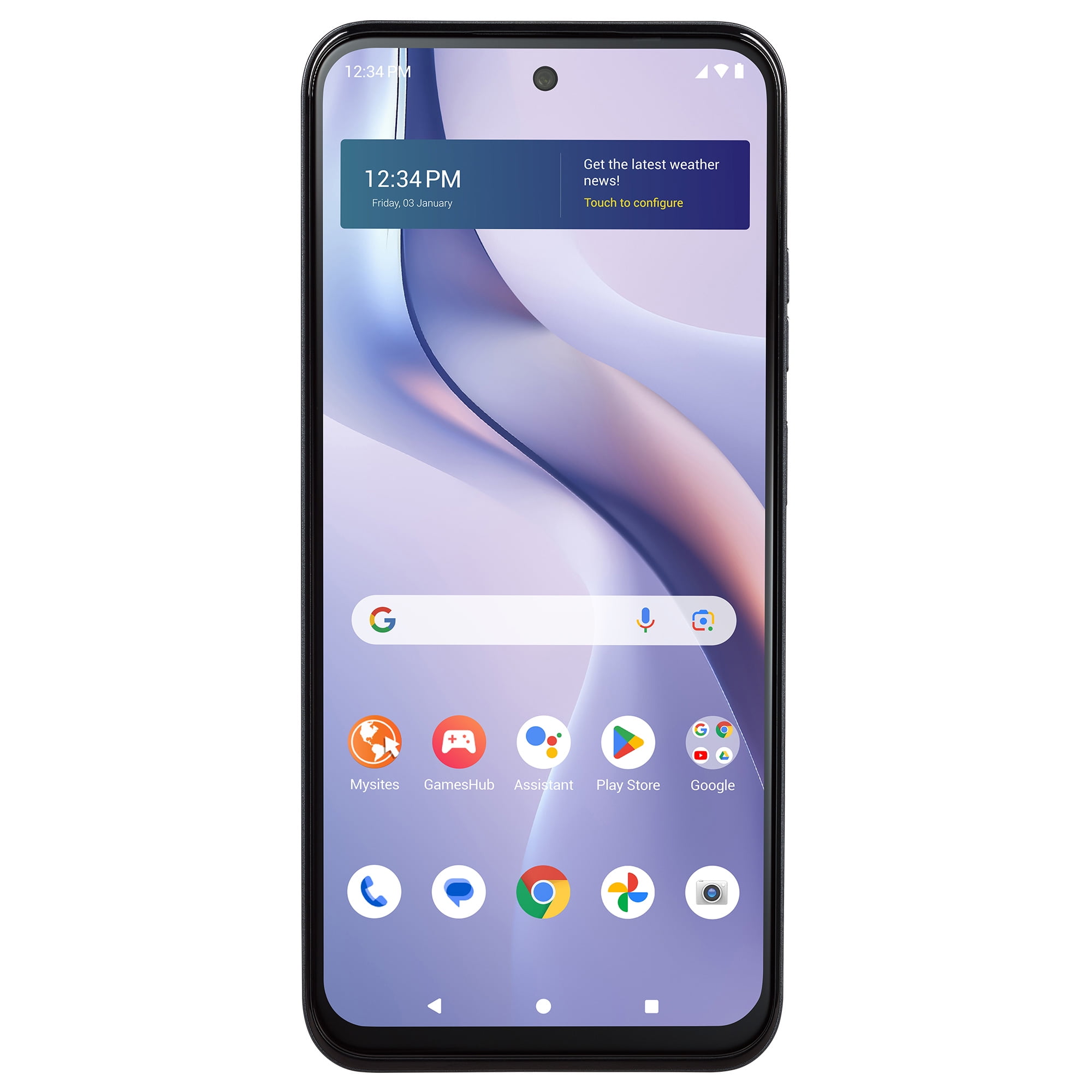
There are several possible reasons why your new Tracfone phone isn’t activating properly. The problem may be related to the SIM card, network connection, account registration, or the phone’s initial setup.
Here are some common possibilities:
- SIM card activation delay: Your SIM card or service plan may not have completed the activation process.
- Incorrect SIM card installation: A SIM card that isn’t properly seated may prevent the phone from detecting it.
- Activation information mismatch: The phone’s IMEI, SIM card number, or account information may not match the information submitted during activation.
- Network connection problems: A weak cellular signal or unstable internet connection may interrupt the activation process.
- SIM card compatibility: The SIM card may not be properly provisioned for the device or Tracfone network.
- Software or setup issues: The phone may encounter a temporary problem during its initial setup.
Identifying the possible cause can help you choose the right troubleshooting steps.
1. Make Sure the SIM Card Is Installed Correctly
Start by checking whether the SIM card is properly installed.
Even if your phone recognizes that a SIM card is present, an improperly positioned SIM card can sometimes cause connectivity problems.
Follow these steps:
- Turn off your BLU View Speed Ultra 5G.
- Locate the SIM card tray.
- Carefully remove the SIM card.
- Check that the SIM card is not damaged or bent.
- Reinsert it in the correct position.
- Turn the phone back on.
Wait a few moments to see whether the phone recognizes the SIM card.
If the phone still displays an activation error, move on to the next step.
2. Connect Your Phone to a Stable Wi-Fi Network
A reliable internet connection can help complete the initial phone setup and activation process.
If you’re trying to activate your Tracfone BLU View Speed Ultra 5G using a weak cellular connection, try connecting to Wi-Fi instead.
Here’s what to do:
- Open your phone’s Settings.
- Go to Wi-Fi.
- Select an available wireless network.
- Enter the Wi-Fi password.
- Wait until the phone shows that it is connected.
- Try continuing the activation process.
Make sure you can access the internet by opening a website or another online application.
Keep in mind that Wi-Fi connectivity alone does not activate your Tracfone cellular service. Your SIM card and service account must still be properly activated.
3. Restart Your BLU View Speed Ultra 5G
Sometimes, a temporary software or network registration issue can prevent the phone from completing activation.
A simple restart may help refresh the phone’s system and allow it to detect the SIM card again.
To restart your device:
- Press and hold the Power button.
- Select Restart if the option appears.
- Wait for the phone to shut down and turn back on.
- Give it a few minutes to reconnect to the network.
- Check whether the activation message disappears.
If the phone is frozen and doesn’t respond, try holding the Power button until it restarts.
Avoid repeatedly restarting the phone if it remains stuck at the same activation screen.
4. Check Your SIM Card and Tracfone Activation Status
If your new phone continues to display a SIM card activation error, the problem may not be with the phone itself.
Your SIM card or Tracfone account may not have been successfully activated.
Check the following information:
- Is your Tracfone service plan active?
- Was the correct SIM card number entered during activation?
- Was the phone’s correct IMEI number submitted?
- Did you receive an activation confirmation?
- Is the SIM card associated with the correct Tracfone account?
You can usually find the IMEI number by checking the phone’s original packaging or navigating to Settings and looking under About Phone.
If you purchased a new Tracfone device with a bundled SIM card, make sure you’re following the activation instructions provided with that particular device.
If the activation process shows an error, contact Tracfone to verify that the SIM card and device are correctly registered.
5. Make Sure Your Phone Has a Cellular Signal
Even after inserting the SIM card, your phone may not connect to the cellular network immediately.
Check the signal indicator at the top of your screen.
If you see No Service, Emergency Calls Only, or no signal bars, your phone may not be registering with the network.
Try these steps:
- Move to an area with better cellular coverage.
- Turn Airplane Mode on for approximately 15 seconds.
- Turn Airplane Mode off.
- Wait for the phone to search for available networks.
- Check whether the cellular signal returns.
If your phone continues to show No Service, Tracfone may need to check the network provisioning associated with your SIM card.
6. Check for Available Software Updates
An outdated software version can sometimes cause problems during device setup or network connectivity.
If you can access the phone’s settings, check whether a software update is available.
Follow these steps:
- Connect your phone to Wi-Fi.
- Open Settings.
- Find System or Software Update.
- Check for available updates.
- Install an update if one is available.
- Restart the phone afterward.
The exact menu names may vary depending on the Android version installed on your BLU device.
If your phone cannot get past the initial activation screen, skip this step and contact Tracfone for assistance.
7. Contact Tracfone Customer Support
If you’ve tried the troubleshooting steps above and your BLU View Speed Ultra 5G still won’t activate, it’s time to contact Tracfone.
This is particularly important if your phone repeatedly displays messages such as:
- SIM card won’t activate.
- Unable to activate SIM card.
- Activation failed.
- No service after SIM installation.
Ask the support representative to verify:
- Whether your SIM card has been successfully activated.
- Whether your device’s IMEI is correctly registered.
- Whether the SIM card is properly associated with your Tracfone account.
- Whether there are any network provisioning issues affecting your device.
Before contacting support, prepare your phone’s IMEI number, SIM card number, and Tracfone account information.
